NowLogit
Login/RegisterBook a demo
MenuClose

PRODUCTS / NOWLOGIT LIVE

See the event.
Find the location.
Follow the response.

From a traditional speech-dialler replacement to detailed panel events on your site plans. Bring signals, locations and keyholder responses together, on desktop and mobile.

✓ Compatible panel events✓ Configured site plans✓ Recorded responses
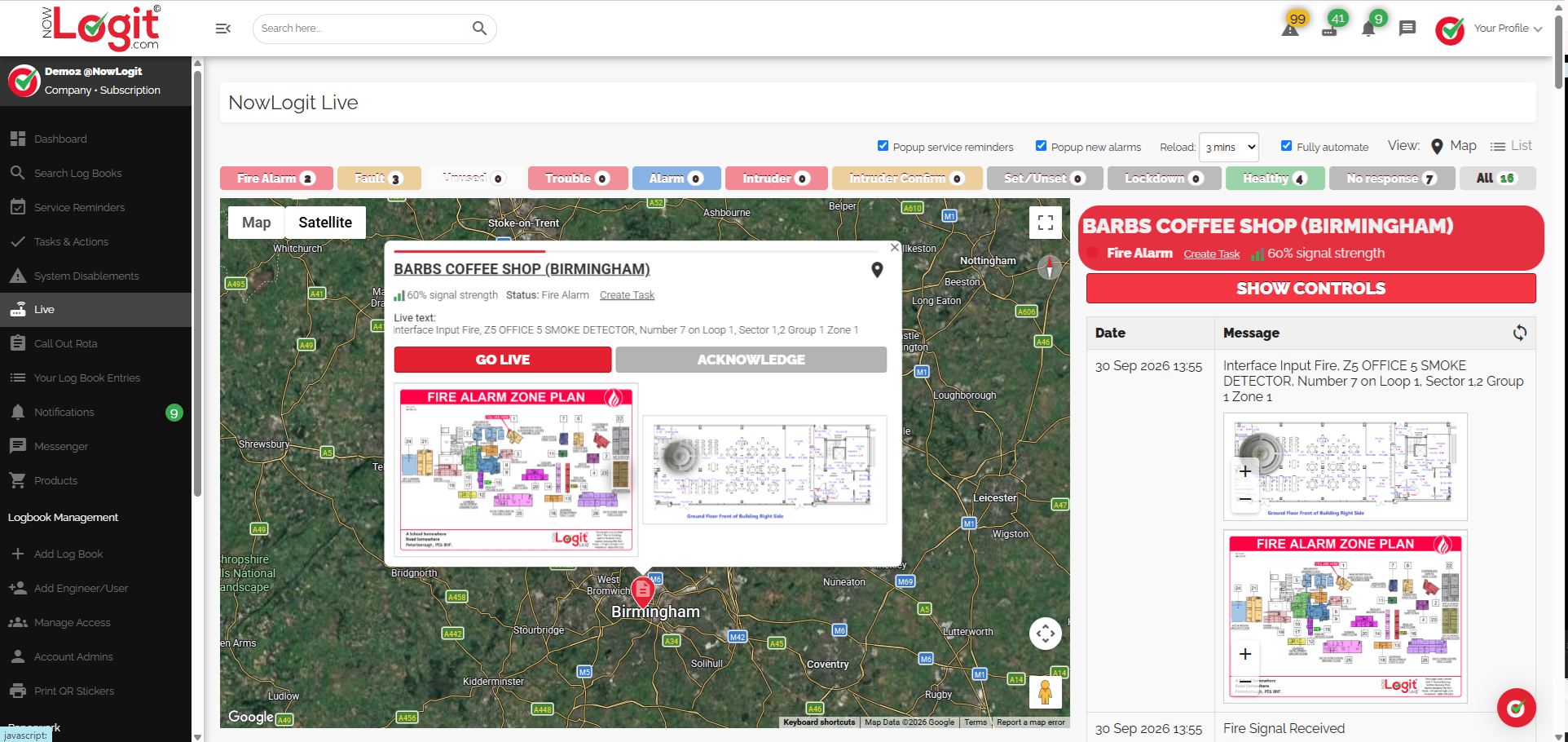
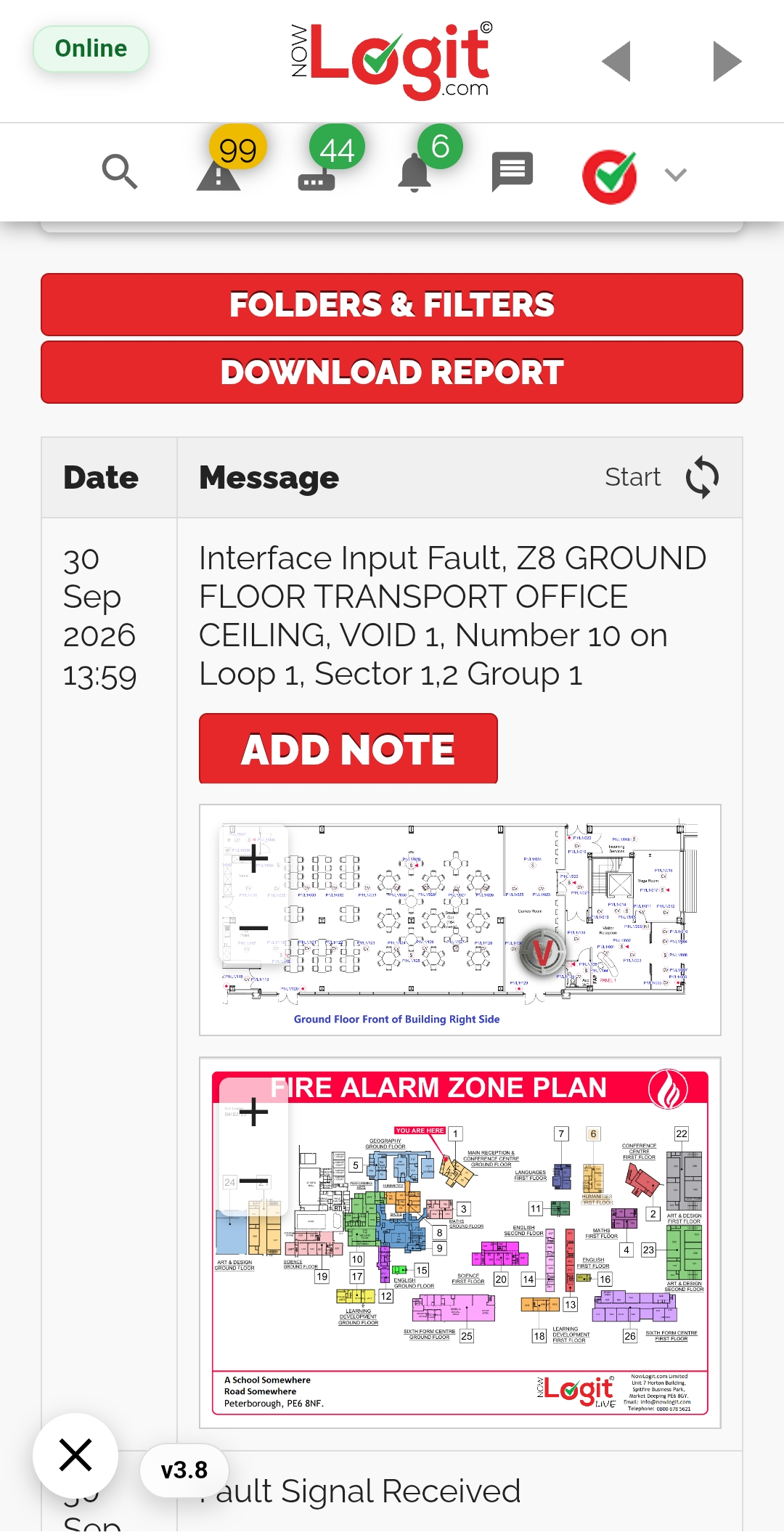
Actual NowLogit V1 Live mobile event record and associated drawings
Explore the real product screens

CHOOSE YOUR CONNECTION

Start with the signal.
Add the detail you need.

Use NowLogit Live as a traditional speech-dialler replacement, or add richer panel information and mapped locations with an Advanced device.

SIGNALS & RESPONSE

A speech-dialler replacement.
With server-side calling.

Trigger calls from configured device inputs. Set up your contacts and keyholders, choose who receives Live calls, and adjust the number of calling attempts from NowLogit.

✓ Individually configured inputs✓ Keyholder response in the event log
ADVANCED DEVICE

Panel information.
Placed on your site plans.

The Advanced device connects to the printer port of compatible panels. Match received fire and fault messages to your uploaded zone charts, as-fit drawings and mapped devices.

✓ Zone-level and device-level views✓ Uploaded plans and configuration PDFs

Detailed event text and mapped locations depend on the panel, interface and site configuration. We’ll check compatibility with you before choosing a device. Compare monitoring options →

ADVANCED / ZONE CHARTS

See the zone.
Know where to look.

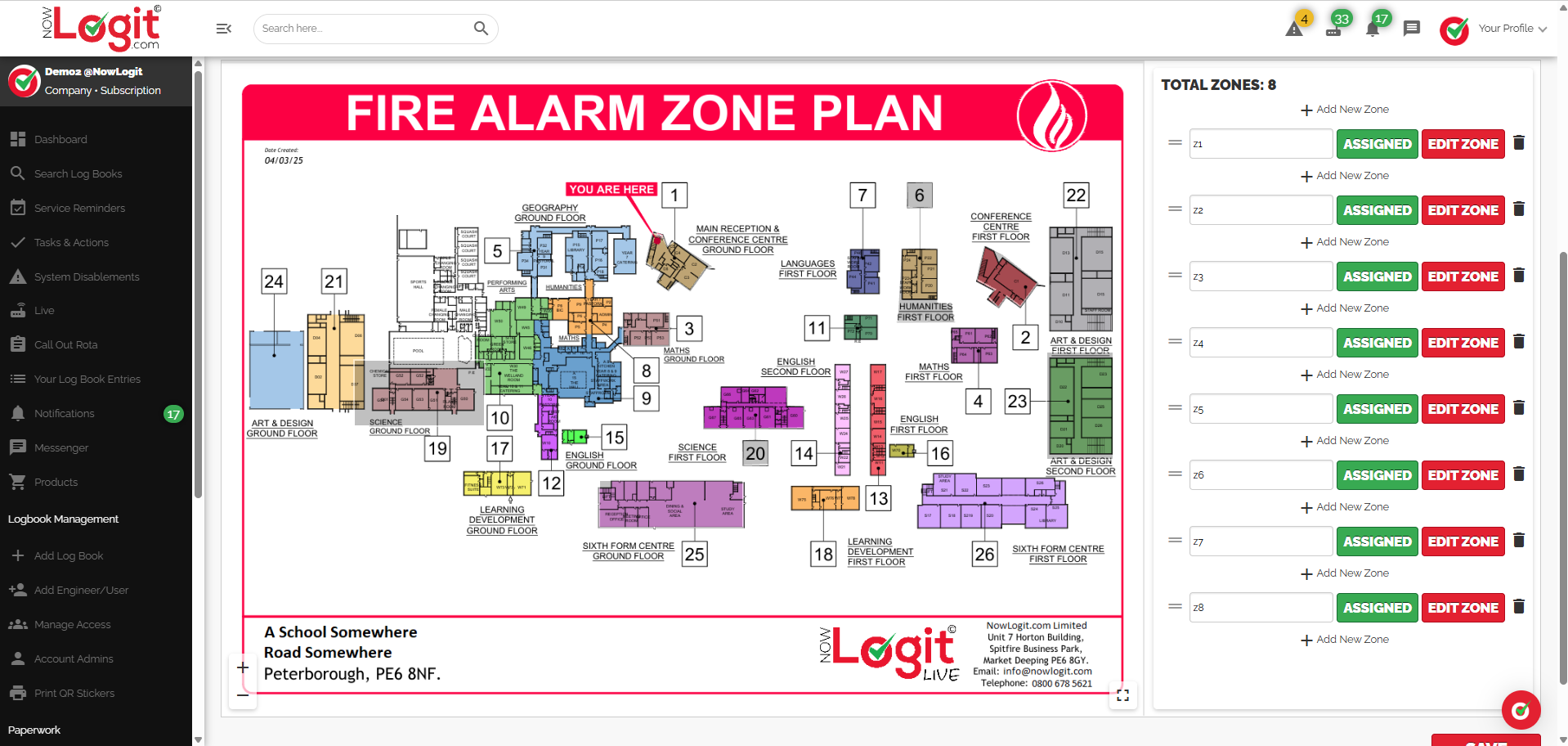
Upload the site’s zone chart and plot the zones over the drawing. When a supported fire or fault signal is received, Live can display the chart full-screen with the affected zone flashing.

Actual NowLogit V1 zone chart setup with eight assigned zone entries and the uploaded fire alarm zone plan
01

Upload the zone chart

Use the drawing for the site you are connecting.

02

Plot and assign zones

Match the panel’s zones to areas on the chart.

03

Bring the event into view

Show the affected zone when its signal arrives.

Real V1 configuration screen. Click to enlarge; the image is not a live control.

ADVANCED / AS-FIT DRAWINGS

From the zone
to the specific device.

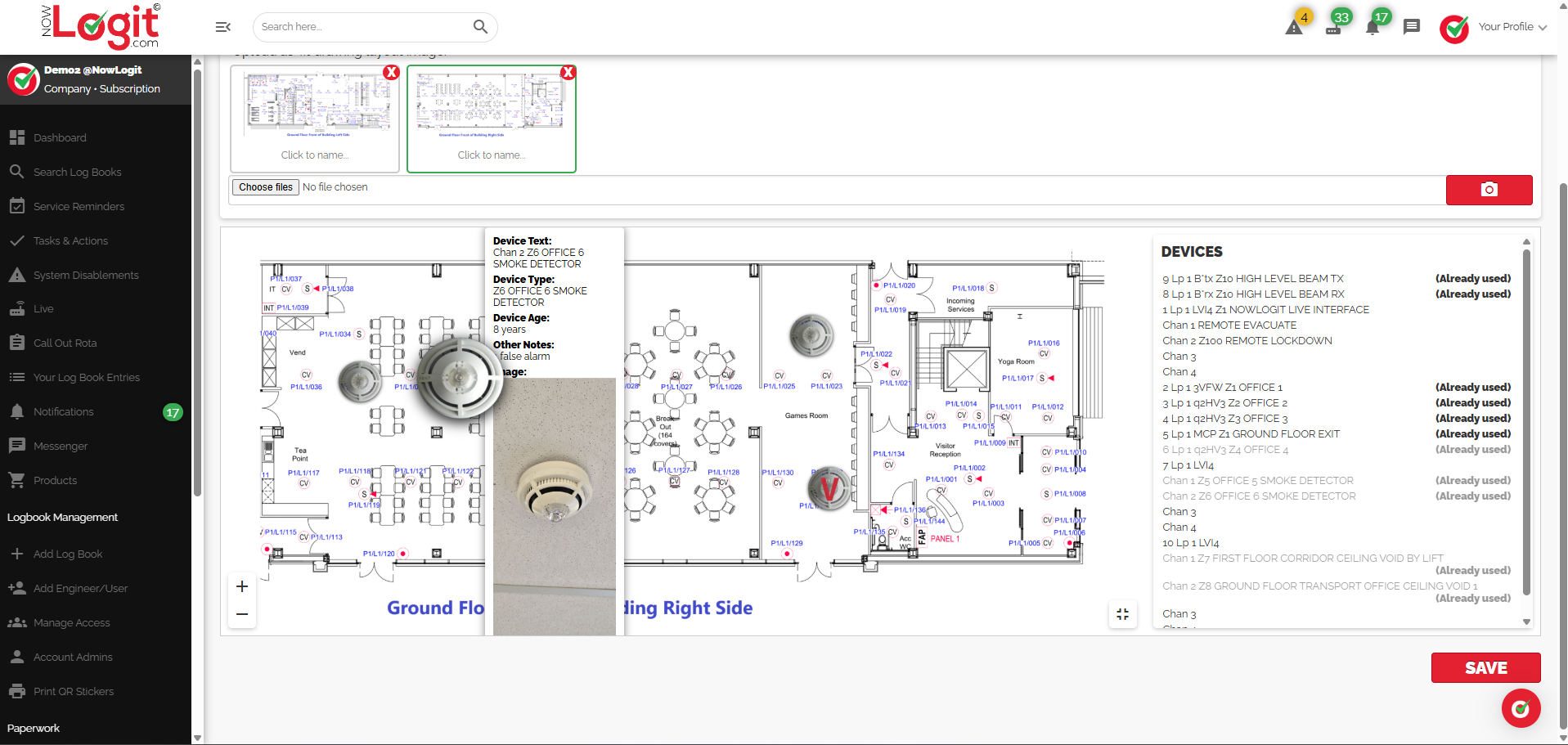
Add the site’s as-fit drawings or floorplans and upload a PDF of the fire panel’s configuration. Plot devices from the right-hand menu onto the relevant plan and choose icons to show their locations.

Locate the device on the correct plan

A matched fire or fault event can show both the zone chart and the as-fit drawing containing the affected device.

Keep device details with the location

Add device age and specific notes, so useful information stays with the mapped device.

Prepare the mapping for your site

Device positions are configured on your uploaded drawings; they are not automatically inferred from the PDF.

Actual NowLogit V1 as-fit mapping view with device menu, selected detector icon, device age, notes and photograph

A real mapped-device record, including age and notes. Click to inspect the full screenshot.

One event. Two useful views.
The affected zone, and the configured location of the specific device.

SERVER-SIDE CALLING

Get the signal
to the right people.

Live calling is triggered according to the input setup. Add multiple contacts and keyholders, decide who receives calls, and set the number of calling attempts to suit the response arrangements for your site.

Manage contacts and call preferences

Keep the contact list and each person’s Live-call setting together.

Choose the calling attempts

Change the configured number of attempts without replacing a physical speech dialler.

Follow the response

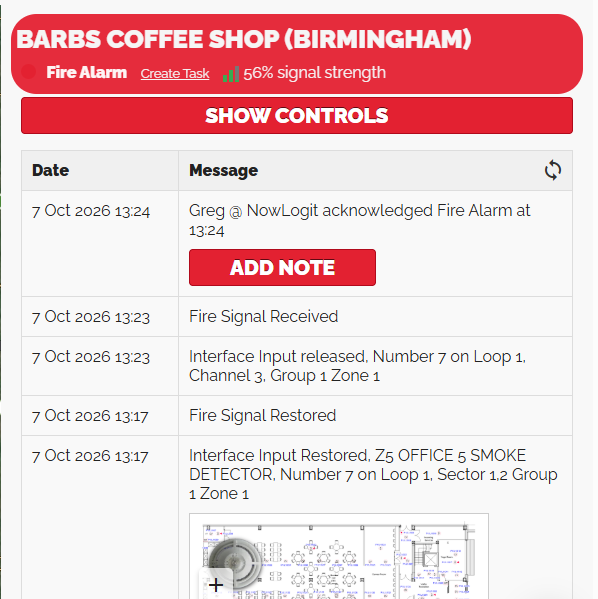
Acknowledged and unacknowledged call feedback is added to the event log, alongside the reported activity.

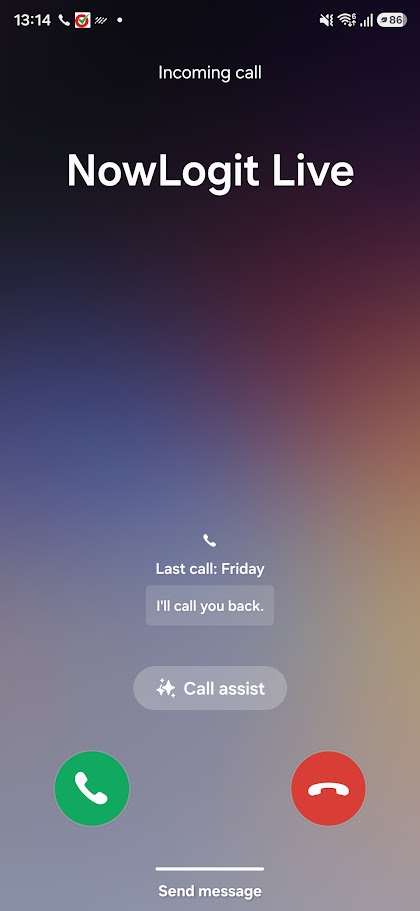
Actual phone screenshot showing an incoming NowLogit Live call

Incoming Live call

RECORDED RESPONSE
Actual NowLogit V1 event log showing a fire alarm acknowledgement, received signals and an Add Note button

Acknowledgement and event detail in the same history.

YOUR CONTACTS. YOUR CALL SETTINGS.Original V1 configuration
Actual NowLogit V1 contact settings, Receive live calls options and configurable call-attempt count

View the real settings. These images cannot make test calls or change contacts.

INDIVIDUAL INPUT CONFIGURATION

Different inputs.
Different scenarios.

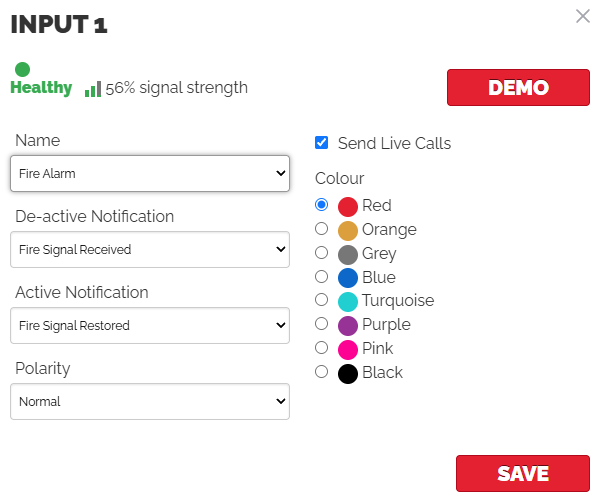
Configure each NowLogit device input around the installation, rather than treating every signal the same way. Define how the input is described and whether it starts server-side Live calls.

Set the input behaviour

Choose the input name, active and de-active notification messages, polarity and display colour.

Control whether the input triggers calls

The input’s Send Live Calls setting works with your contact and call-attempt configuration.

Input and relay functions depend on the connected equipment and installation.

Actual NowLogit V1 input settings: event labels, notification messages, polarity, colour and Send Live Calls

A closer crop of the input-settings screen. Enlarge to see the complete original.

EMAIL ALERTS WITH CONTEXT

More than an alert.
A route to the event.

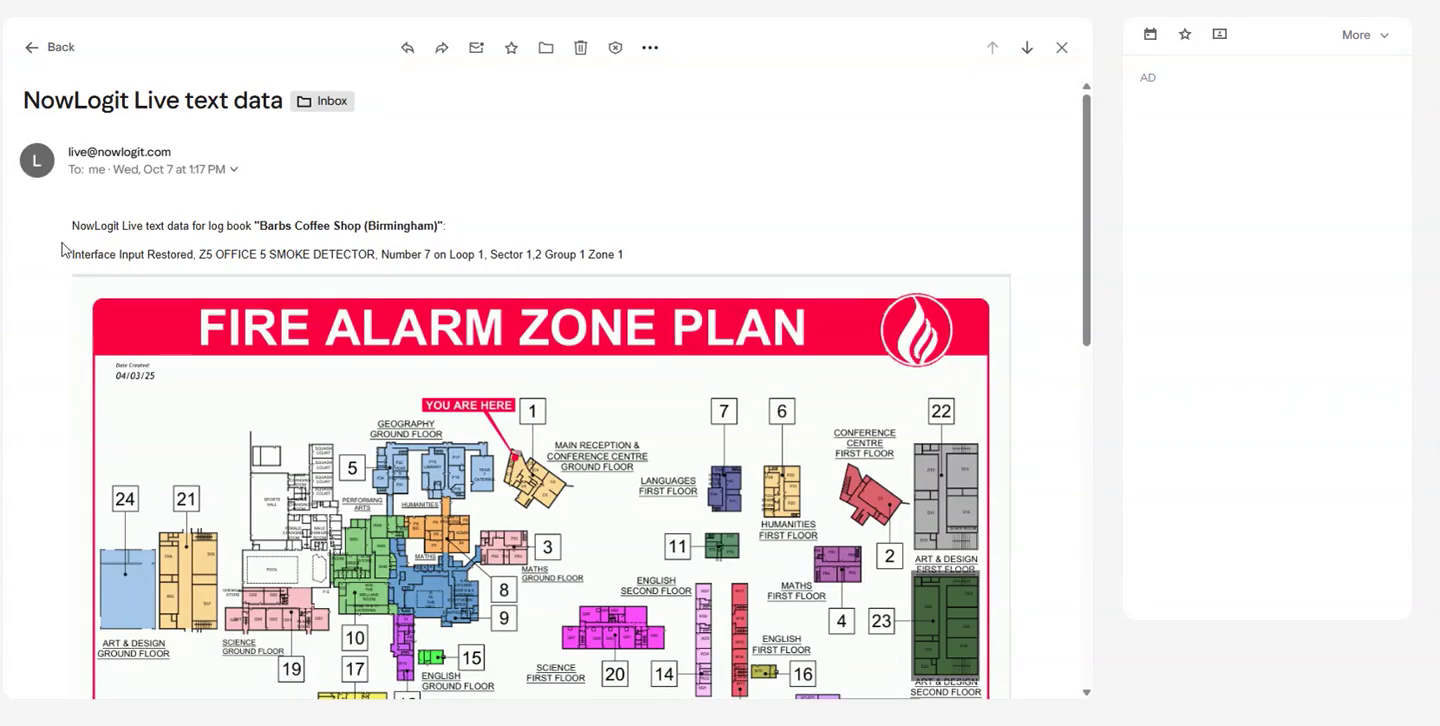
Alongside keyholder calls, NowLogit Live sends event emails with the affected zone chart and floorplan where these are configured. A link takes the recipient straight to the relevant event view.

Put the location in the email

Give contacts the available zone and device-plan information alongside the panel message.

Open the relevant view

Follow the email link to the matching chart or drawing, subject to the site’s access settings.

The recording shows the real email-to-plan workflow. No email is sent by playing the recording.

EMAIL TO SITE PLANReal V1 recording

Click to play. Product views are unchanged. Includes flashing event indicators.

ENGINEERS / ROUTINE TESTING

Test on site.
Keep the event trail.

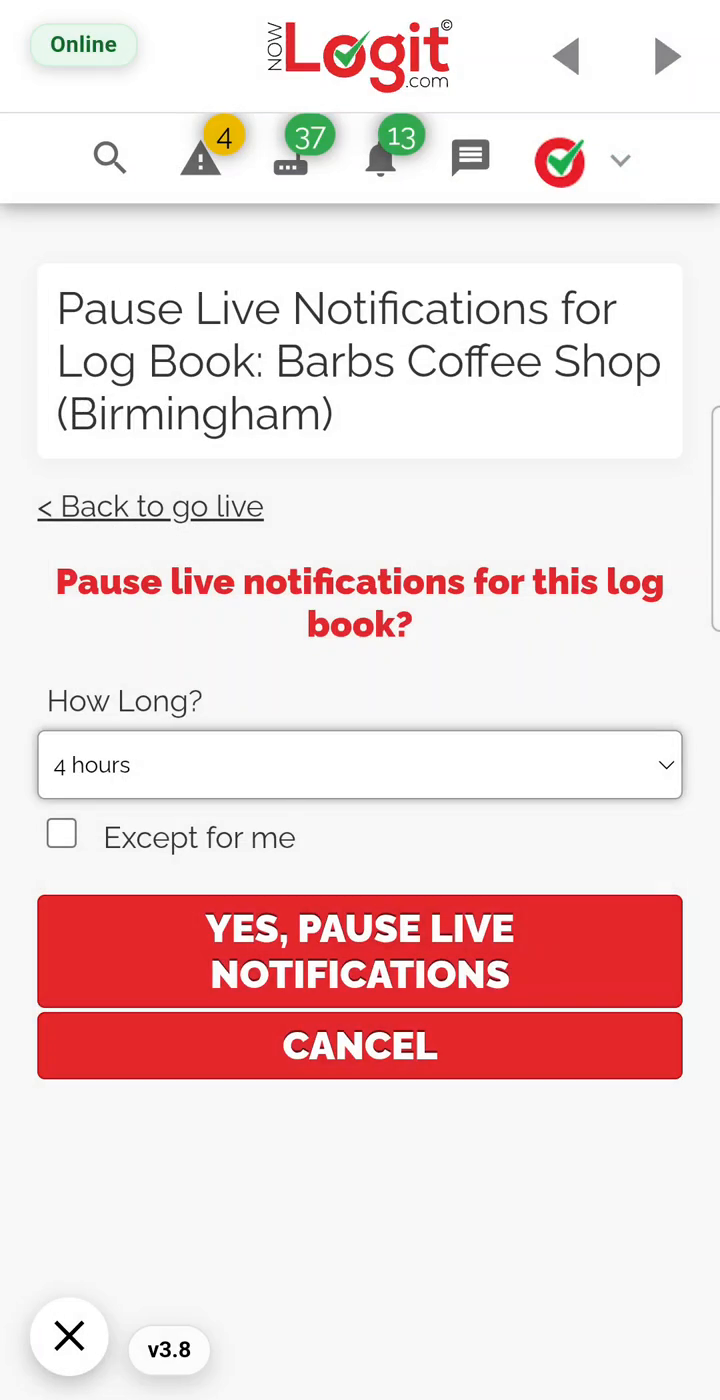
During planned routine testing, pause Live notifications and use Go Live to receive panel updates approximately every three seconds. Keep a time-stamped record of received test signals and the observations that need following up.

Pause notifications for the test period

Use the site’s pause settings for planned testing, then restore normal notifications when testing is complete.

Watch the received signals

Review the live panel activity and its mapped zone and device information as tests are carried out.

Record corrections while you are there

When a text description or location needs changing, add a note directly to the event log for later follow-up.

The three-second figure describes Go Live refresh, not a guaranteed end-to-end alarm-delivery time. Timing depends on the panel connection and network.

~3s

Go Live
panel updates

V1 mobile recording. Click to play; no audio or simulated interactions.

FOLDERS, FILTERS & FOLLOW-UP

Spot the repeat.
Keep the context.

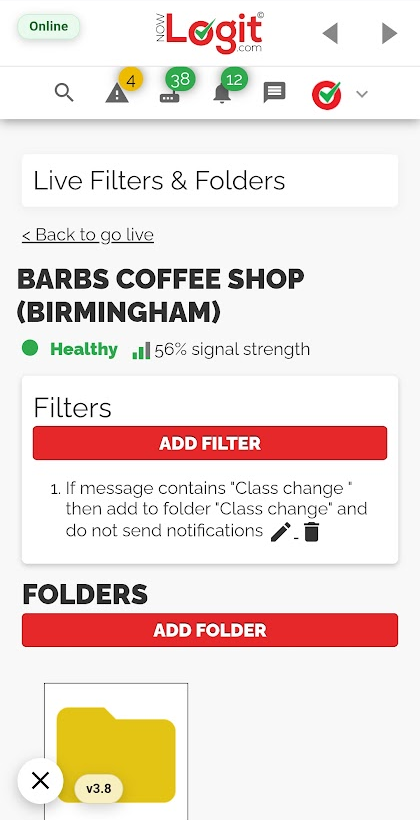
Create folders and filters to organise recurring messages and faults. Bring related events together so it is easier to review repeat issues and understand what needs attention.

Organise recurring messages

Set up matching rules to route related event messages into named folders.

Build a useful fault history

Review the related events over time rather than searching through an undifferentiated event list.

Keep observations with events

Add notes about descriptions, locations or follow-up work directly to the event record.

Actual NowLogit V1 Live Filters and Folders screen, showing a configured message rule and folder

Related events.
One place to review.

A real message rule and folder in NowLogit V1.

SEE THE BIGGER PICTURE

Site signals.
Location. Response.

View connected sites, review the event sequence and open the available drawings from one place. Where installed and configured, relay outputs provide the controls appropriate to the equipment.

View monitoring options →
▷ Watch the original desktop overview

27-second V1 desktop recording. Click play; no audio.

What to bring to a Live demo

The panel make and model, available printer-port details, a zone chart, as-fit plans and a configuration PDF where available. We’ll discuss the site’s calling and notification requirements with you.